Transparent Background Maker
Remove a selected edge color from an image.
Runs locally — files stay on your deviceWhat this tool does
Transparent Background Maker provides a focused visual workflow for the operation described on this page. Selected images are previewed, processed in browser memory, and returned as a direct download or ZIP archive when multiple files are involved. Keep the original images and inspect dimensions, transparency, color, format support, and output quality before publishing or replacing production assets.
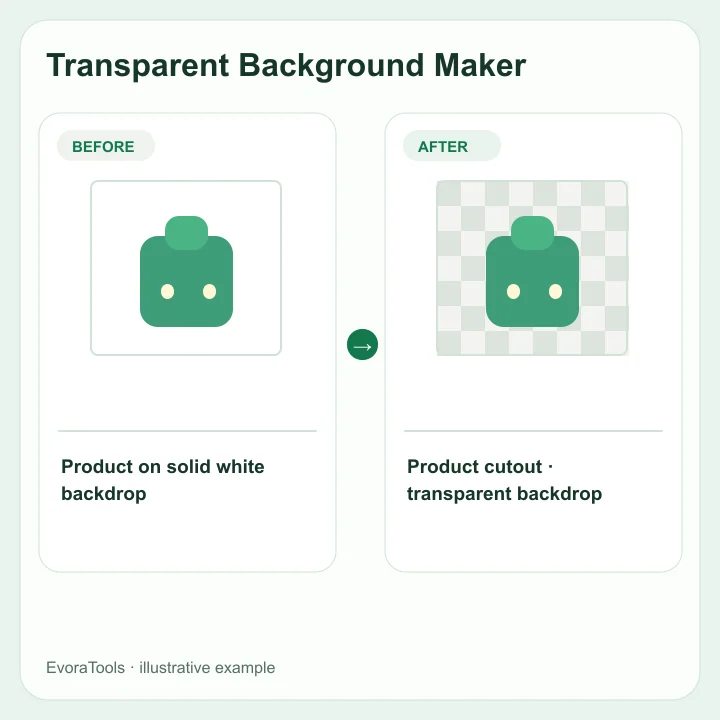
What is the quickest way to transparent?
Enter Tolerance, run Transparent Background Maker, and use the returned transparent result.
Understanding transparent
Image operations work with decoded pixels, dimensions, color channels, transparency, and an output encoding. Format, quality, and pixel size affect different aspects of the result. For this page, the specific intent is transparent; that boundary distinguishes it from broader tools in Image.
How it works
The browser decodes the selected image, draws or transforms its pixels on a canvas, then creates a new downloadable image. Here, the relevant input is Tolerance, and the output is tailored to transparent.
Key concepts
Transparent Background Maker input and result
The input is Tolerance. The output represents transparent, so review its format before reuse.
Why transparent matters
A dedicated transparent background maker workflow reduces ambiguity: the operation has one stated intent and does not silently perform unrelated changes.
When to use it
- Prepare an asset for a website or social platform when the goal is transparent.
- Standardize dimensions or file format when the goal is transparent.
- Make a controlled visual adjustment without uploading the source when the goal is transparent.
When not to use it
- Keep the original because exported changes are not reversible.
- Do not confuse smaller dimensions with lower file size in every case.
- Check transparency and quality after changing format.
Worked examples
Typical transparent task
- Input
Tolerance = 25- Expected output
A transparent result ready to review
This demonstrates the primary intent described by Transparent Background Maker.
Transparent Background Maker boundary check
- Input
Tolerance = 0- Expected output
A validated transparent result or a clear input error
Boundary values reveal the unit, syntax, range, and formatting assumptions specific to Transparent Background Maker.
Using the Transparent Background Maker output
- Input
Tolerance = 25- Expected output
Output copied or downloaded for the destination system
The final destination determines the precision, format, and review needed after transparent.
Common mistakes
Using the wrong transparent input
Keep the original because exported changes are not reversible. Correction: Confirm that Tolerance matches the page labels.
Skipping review after transparent
Do not confuse smaller dimensions with lower file size in every case. Correction: Compare the result with the original and its destination requirements.
Expecting Transparent Background Maker to do more
Check transparency and quality after changing format. Correction: Use a related tool when the task extends beyond transparent.
Best practices
- Keep an original copy before using Transparent Background Maker.
- Use consistent input formats and units for transparent.
- Review the Transparent Background Maker result in the system where it will be used.
Related operations and differences
Replace Image Background Color
Choose Replace Image Background Color when you need to replace transparent pixels with a chosen color.; use Transparent Background Maker specifically for transparent.
Add Border to Image
Choose Add Border to Image when you need to add a configurable border around an image.; use Transparent Background Maker specifically for transparent.
Add Padding to Image
Choose Add Padding to Image when you need to add configurable space around an image.; use Transparent Background Maker specifically for transparent.
Add Rounded Corners to Image
Choose Add Rounded Corners to Image when you need to create transparent rounded image corners.; use Transparent Background Maker specifically for transparent.
Add Text to Image
Choose Add Text to Image when you need to overlay styled text on an image.; use Transparent Background Maker specifically for transparent.
Auto Crop Image
Choose Auto Crop Image when you need to trim uniform transparent or solid-color borders.; use Transparent Background Maker specifically for transparent.
Limitations and privacy
- Large decoded images can exceed available browser memory.
- Format encoding support and output quality depend on the browser.
Selected image pixels are processed locally in this browser and are not uploaded by this tool.
Frequently asked questions
What does Transparent Background Maker do?
It remove a selected edge color from an image. The operation is limited to transparent and does not infer requirements that are not shown.
What input should I use for transparent background maker?
Use Tolerance in the units or format shown beside each field.
How should I interpret the Transparent Background Maker result?
Treat the output as the direct result of transparent. Check it in the destination context, especially when rounding, formatting, metadata, or irreversible file changes matter.
What limitations apply to Transparent Background Maker?
Large decoded images can exceed browser memory even when the compressed file is small. Browser format support and canvas export behavior vary.