PDF Accessibility Checker
Run a practical structural accessibility screen on a PDF.
Runs locally — files stay on your deviceWhat this tool does
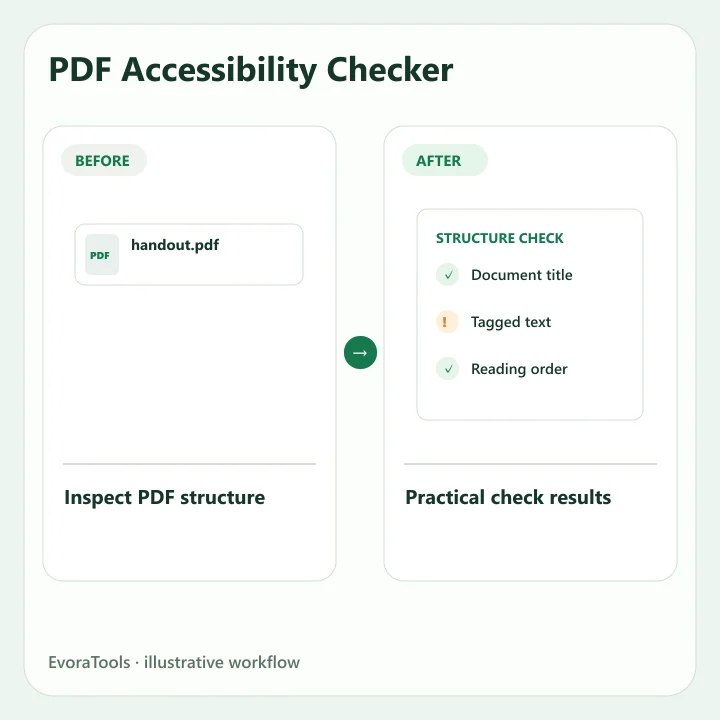
PDF Accessibility Checker reports title and language metadata, bookmarks, pages without extractable text, and detected form widgets. It is an early structural screen and explicitly not PDF/UA certification or a substitute for assistive-technology testing. Keep the original document, inspect the generated result before sharing it, and use specialist software whenever legal, archival, print-production, or certification requirements extend beyond this focused workflow.
What is the quickest way to accessibility?
Enter a selected local file, run PDF Accessibility Checker, and use the returned accessibility result.
Understanding pdf
PDF files contain page objects and shared resources such as fonts, images, forms, links, and metadata. Page-level operations may preserve visible content without preserving every advanced document feature. For this page, the specific intent is accessibility; that boundary distinguishes it from broader tools in PDF.
How it works
The selected document is loaded in browser memory, the requested page or metadata operation is applied, and a new PDF is created for download. Here, the relevant input is a selected local file, and the output is tailored to accessibility.
Key concepts
PDF Accessibility Checker input and result
The input is a selected local file. The output represents accessibility, so review its format before reuse.
Why accessibility matters
A dedicated pdf accessibility checker workflow reduces ambiguity: the operation has one stated intent and does not silently perform unrelated changes.
When to use it
- Reorganize a document before sharing when the goal is accessibility.
- Inspect pages or metadata without uploading the file when the goal is accessibility.
- Create a focused PDF from existing material when the goal is accessibility.
When not to use it
- Keep the original before deleting, cropping, flattening, or reordering pages.
- Verify forms, signatures, bookmarks, and annotations after processing.
- Select page ranges carefully because numbering starts at one in the interface.
Worked examples
Typical pdf task
- Input
Representative pdf accessibility checker input- Expected output
A accessibility result ready to review
This demonstrates the primary intent described by PDF Accessibility Checker.
PDF Accessibility Checker boundary check
- Input
Input containing spaces, punctuation, or an edge case- Expected output
A validated accessibility result or a clear input error
Boundary values reveal the unit, syntax, range, and formatting assumptions specific to PDF Accessibility Checker.
Using the PDF Accessibility Checker output
- Input
Input prepared for a downstream pdf workflow- Expected output
Output copied or downloaded for the destination system
The final destination determines the precision, format, and review needed after accessibility.
Common mistakes
Using the wrong pdf input
Keep the original before deleting, cropping, flattening, or reordering pages. Correction: Confirm that a selected local file matches the page labels.
Skipping review after accessibility
Verify forms, signatures, bookmarks, and annotations after processing. Correction: Compare the result with the original and its destination requirements.
Expecting PDF Accessibility Checker to do more
Select page ranges carefully because numbering starts at one in the interface. Correction: Use a related tool when the task extends beyond accessibility.
Best practices
- Keep an original copy before using PDF Accessibility Checker.
- Use consistent input formats and units for accessibility.
- Review the PDF Accessibility Checker result in the system where it will be used.
Related operations and differences
Add Header and Footer to PDF
Choose Add Header and Footer to PDF when you need to add reusable header and footer text to PDF pages.; use PDF Accessibility Checker specifically for accessibility.
Add Image Watermark to PDF
Choose Add Image Watermark to PDF when you need to overlay an image watermark on every PDF page.; use PDF Accessibility Checker specifically for accessibility.
Compare Two PDF Files
Choose Compare Two PDF Files when you need to compare two PDFs by pages and extracted text.; use PDF Accessibility Checker specifically for accessibility.
Compress PDF
Choose Compress PDF when you need to reduce PDF size while keeping searchable text in normal modes.; use PDF Accessibility Checker specifically for accessibility.
Extract Images from PDF
Choose Extract Images from PDF when you need to extract downloadable image content from PDF pages.; use PDF Accessibility Checker specifically for accessibility.
Fill PDF Form
Choose Fill PDF Form when you need to detect and complete interactive PDF form fields.; use PDF Accessibility Checker specifically for accessibility.
Limitations and privacy
- Encrypted, damaged, or unusually complex PDFs may not load.
- Digital signatures and advanced interactive features may not survive creation of a new document.
The PDF is read and processed locally in this browser.
Frequently asked questions
What does PDF Accessibility Checker do?
It run a practical structural accessibility screen on a PDF. The operation is limited to accessibility and does not infer requirements that are not shown.
What input should I use for pdf accessibility checker?
Use representative input that matches the format described by the page and its file picker or text area.
How should I interpret the PDF Accessibility Checker result?
Treat the output as the direct result of accessibility. Check it in the destination context, especially when rounding, formatting, metadata, or irreversible file changes matter.
What limitations apply to PDF Accessibility Checker?
Encrypted, damaged, or unusually complex PDFs may not load. Digital signatures and advanced interactive features may not survive creation of a new document.