Extract Video Frames
Extract periodic JPG frames from a video into a ZIP.
Uses protected server processingWhat this tool does
Extract Video Frames provides a focused workflow for the media operation described on this page. The interface accepts the relevant source file, exposes only the necessary controls, and returns a direct download or validation report. Keep the original file and inspect timing, quality, codecs, synchronization, dimensions, and compatibility in the destination player before replacing production media.
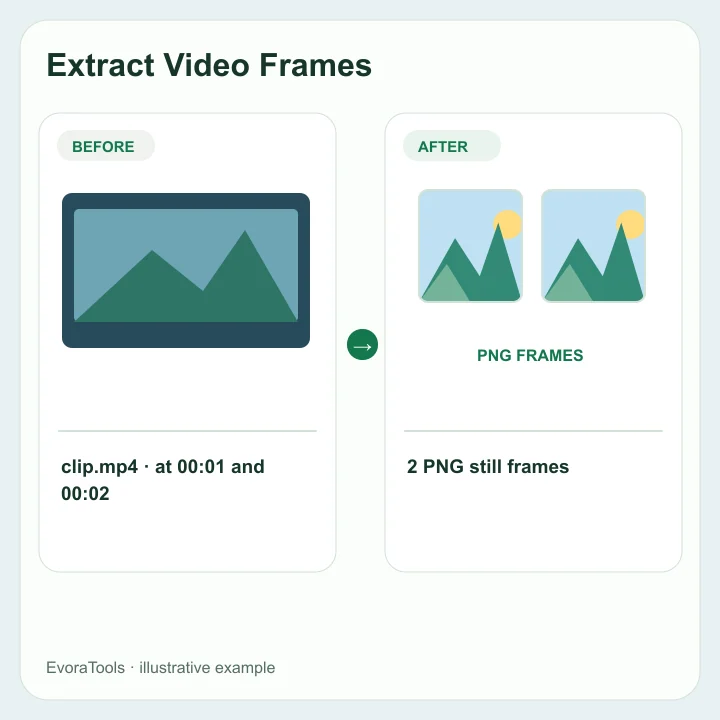
What is the quickest way to video frames?
Enter Frames per second, run Extract Video Frames, and use the returned video frames result.
Understanding extract
This utility applies one focused transformation to the supplied input. For this page, the specific intent is video frames; that boundary distinguishes it from broader tools in Video.
How it works
Enter the requested values, run the operation, and review the result before copying or downloading it. Here, the relevant input is Frames per second, and the output is tailored to video frames.
Key concepts
Extract Video Frames input and result
The input is Frames per second. The output represents video frames, so review its format before reuse.
Why video frames matters
A dedicated extract video frames workflow reduces ambiguity: the operation has one stated intent and does not silently perform unrelated changes.
When to use it
- Complete a focused digital task when the goal is video frames.
- Prepare consistent output when the goal is video frames.
- Check a result before reuse when the goal is video frames.
When not to use it
- Review the output in its destination context.
- Keep the original input when the change is irreversible.
- Do not infer guarantees beyond the displayed result.
Worked examples
Typical extract task
- Input
Frames per second = 25- Expected output
A video frames result ready to review
This demonstrates the primary intent described by Extract Video Frames.
Extract Video Frames boundary check
- Input
Frames per second = 0- Expected output
A validated video frames result or a clear input error
Boundary values reveal the unit, syntax, range, and formatting assumptions specific to Extract Video Frames.
Using the Extract Video Frames output
- Input
Frames per second = 25- Expected output
Output copied or downloaded for the destination system
The final destination determines the precision, format, and review needed after video frames.
Common mistakes
Using the wrong extract input
Review the output in its destination context. Correction: Confirm that Frames per second matches the page labels.
Skipping review after video frames
Keep the original input when the change is irreversible. Correction: Compare the result with the original and its destination requirements.
Expecting Extract Video Frames to do more
Do not infer guarantees beyond the displayed result. Correction: Use a related tool when the task extends beyond video frames.
Best practices
- Keep an original copy before using Extract Video Frames.
- Use consistent input formats and units for video frames.
- Review the Extract Video Frames result in the system where it will be used.
Related operations and differences
Extract Audio from Video
Choose Extract Audio from Video when you need to extract the audio track from a video.; use Extract Video Frames specifically for video frames.
Compress Video
Choose Compress Video when you need to reduce video size with an adjustable CRF value.; use Extract Video Frames specifically for video frames.
Crop Video
Choose Crop Video when you need to crop video using exact dimensions and offsets.; use Extract Video Frames specifically for video frames.
Remove Audio from Video
Choose Remove Audio from Video when you need to create a silent copy of a video.; use Extract Video Frames specifically for video frames.
Resize Video
Choose Resize Video when you need to resize video to exact output dimensions.; use Extract Video Frames specifically for video frames.
Trim Video
Choose Trim Video when you need to export a selected time range from a video.; use Extract Video Frames specifically for video frames.
Limitations and privacy
- Codec support and conversion quality depend on FFmpeg and the source file.
- Large media files require significant processing time and are subject to the displayed upload limit.
Selected media is uploaded for temporary protected FFmpeg processing and working files are removed after the request.
Frequently asked questions
What does Extract Video Frames do?
It extract periodic JPG frames from a video into a ZIP. The operation is limited to video frames and does not infer requirements that are not shown.
What input should I use for extract video frames?
Use Frames per second in the units or format shown beside each field.
How should I interpret the Extract Video Frames result?
Treat the output as the direct result of video frames. Check it in the destination context, especially when rounding, formatting, metadata, or irreversible file changes matter.
What limitations apply to Extract Video Frames?
Results depend on browser support and valid input.