Duplicate File Finder
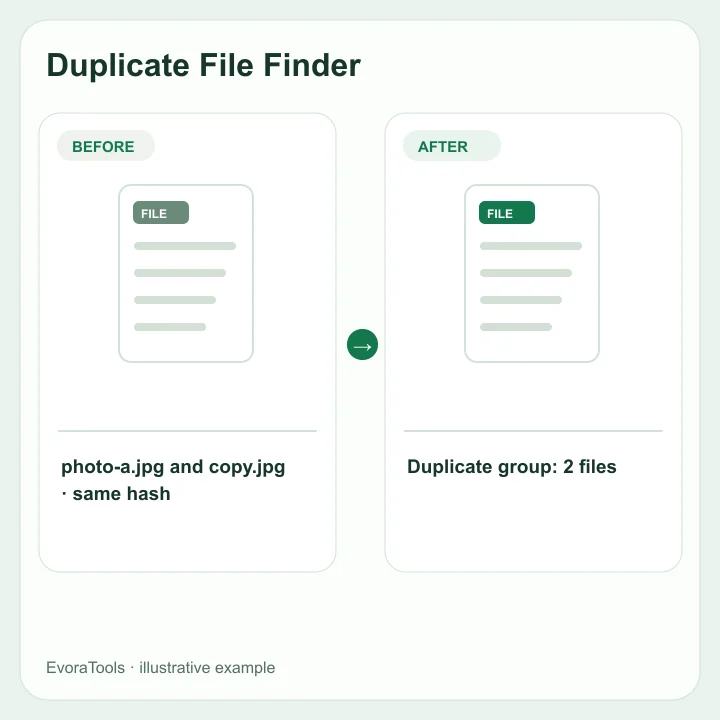
Find byte-identical selected files using SHA-256.
Runs locally — files stay on your deviceWhat this tool does
Duplicate File Finder find byte-identical selected files using SHA-256. The page accepts a focused input and displays a result that can be copied into another workflow. Check generated values and remote responses against the actual destination before publishing or acting on the result. The supplied input is processed locally in the browser.
What is the quickest way to duplicates?
Enter the requested input, run Duplicate File Finder, and use the returned duplicates result.
Understanding duplicate
File utilities operate on bytes, filenames, archives, MIME information, or cryptographic digests. A filename and a detected content type describe a file but do not guarantee that its contents are safe. For this page, the specific intent is duplicates; that boundary distinguishes it from broader tools in File Tools.
How it works
The browser reads only the files selected for this operation and returns text, a comparison, or a newly generated download. Here, the relevant input is the requested input, and the output is tailored to duplicates.
Key concepts
Duplicate File Finder input and result
The input is the requested input. The output represents duplicates, so review its format before reuse.
Why duplicates matters
A dedicated duplicate file finder workflow reduces ambiguity: the operation has one stated intent and does not silently perform unrelated changes.
When to use it
- Inspect a local file before transfer when the goal is duplicates.
- Prepare a group of files for consistent delivery when the goal is duplicates.
- Verify identity or metadata without uploading content when the goal is duplicates.
When not to use it
- Treat unknown files and archives as untrusted.
- Keep originals before bulk rename or archive operations.
- A matching extension does not prove file contents.
Worked examples
Typical duplicate task
- Input
Representative duplicate file finder input- Expected output
A duplicates result ready to review
This demonstrates the primary intent described by Duplicate File Finder.
Duplicate File Finder boundary check
- Input
Input containing spaces, punctuation, or an edge case- Expected output
A validated duplicates result or a clear input error
Boundary values reveal the unit, syntax, range, and formatting assumptions specific to Duplicate File Finder.
Using the Duplicate File Finder output
- Input
Input prepared for a downstream file tools workflow- Expected output
Output copied or downloaded for the destination system
The final destination determines the precision, format, and review needed after duplicates.
Common mistakes
Using the wrong duplicate input
Treat unknown files and archives as untrusted. Correction: Confirm that the requested input matches the page labels.
Skipping review after duplicates
Keep originals before bulk rename or archive operations. Correction: Compare the result with the original and its destination requirements.
Expecting Duplicate File Finder to do more
A matching extension does not prove file contents. Correction: Use a related tool when the task extends beyond duplicates.
Best practices
- Keep an original copy before using Duplicate File Finder.
- Use consistent input formats and units for duplicates.
- Review the Duplicate File Finder result in the system where it will be used.
Related operations and differences
Binary File Viewer
Choose Binary File Viewer when you need to inspect file bytes in hexadecimal and ASCII.; use Duplicate File Finder specifically for duplicates.
Bulk File Renamer
Choose Bulk File Renamer when you need to preview new names and package renamed copies.; use Duplicate File Finder specifically for duplicates.
File Extension Changer
Choose File Extension Changer when you need to download a file with a different extension without converting contents.; use Duplicate File Finder specifically for duplicates.
File Type Detector by Signature
Choose File Type Detector by Signature when you need to identify common file types from magic bytes.; use Duplicate File Finder specifically for duplicates.
Archive Content Viewer
Choose Archive Content Viewer when you need to list files inside ZIP or TAR archives.; use Duplicate File Finder specifically for duplicates.
Folder Size Analyzer
Choose Folder Size Analyzer when you need to summarize selected folder files by size and extension.; use Duplicate File Finder specifically for duplicates.
Limitations and privacy
- Large files and archives are constrained by available browser memory.
- Some metadata and filesystem attributes are not exposed to web pages.
The supplied input is processed locally in this browser.
Frequently asked questions
What does Duplicate File Finder do?
It find byte-identical selected files using SHA-256. The operation is limited to duplicates and does not infer requirements that are not shown.
What input should I use for duplicate file finder?
Use representative input that matches the format described by the page and its file picker or text area.
How should I interpret the Duplicate File Finder result?
Treat the output as the direct result of duplicates. Check it in the destination context, especially when rounding, formatting, metadata, or irreversible file changes matter.
What limitations apply to Duplicate File Finder?
Large files and archives are constrained by available browser memory. Some metadata and filesystem attributes are not exposed to web pages.